

Asset Optimizer: poradnik i samouczek
Ten sam resource, lżejszy: tekstury, które się wczytują.
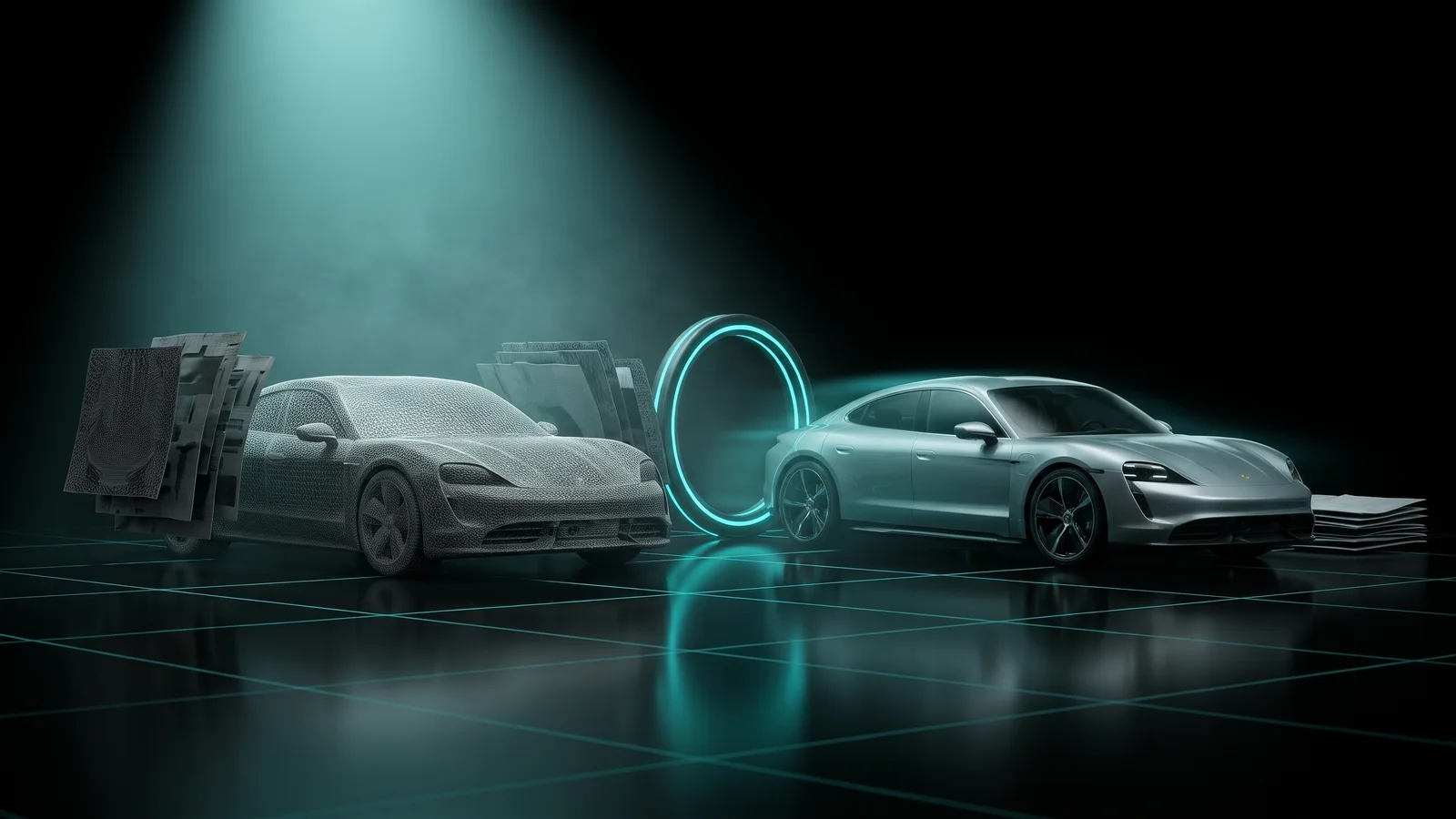
Poradnik wideo pojawi się wkrótce
Do tego czasu poradnik poniżej przeprowadzi cię przez każdy krok.
Na razie ten poradnik jest tylko po angielsku.
What it is
The Asset Optimizer looks inside a resource you already have, such as a car pack, a map, an MLO, clothing or props, and tells you how much video memory each file costs every player who loads it. It points out files over the 16 MB streaming limit and textures far bigger than needed. You pick how much to shrink, watch the savings update before anything is changed, and download the same resource with the same folders, names and fxmanifest, only lighter. You replace the old folder and restart. Analyzing is free.
Who it's for
- Server owners whose players see invisible cars, textures that never load, or long loading after joining.
- Anyone with a car pack or MLO that the server console flags as oversized.
- Owners who want to know which resource is the heaviest before buying more.
Before you start
- A THE ORB account, signed in.
- The resource as a folder, a .zip, or loose .ytd, .ydr, .ydd and .yft files. Up to 100 MB per file and 600 files at a time.
- A copy of the original resource, in case you want to go back.
Tell it what you are optimizing
The first screen asks What are you optimizing? Each type starts with settings that suit it. You can change all of them later.
| Type | Starts with | Adds LODs |
|---|---|---|
| Cars | Quality: textures up to 2048 px | No |
| Maps & MLOs | Balanced: textures up to 1024 px | Yes |
| Clothing | Balanced: textures up to 1024 px | Yes |
| Props | Balanced: textures up to 1024 px | Yes |
| Weapons | Balanced: textures up to 1024 px | No |
| Peds | Balanced: textures up to 1024 px | No |
| A bit of everything | Balanced: textures up to 1024 px | No |
A car is seen up close, so it keeps bigger textures. Maps, clothing and props are seen in large numbers and from further away, so they start lighter and get LODs (lighter copies the game draws from far away).
Drop the resource and let it scan
- 1
Drop it on the card
Drag the resource folder, its .zip, or the loose files onto the type you picked. You can also click to choose them.
- 2
Wait for the scan
Each file is uploaded and analyzed. You see how many are done and how much video memory has been found so far. Cancel stops it.
- 3
Check what was left out
Encrypted files (escrow, protected by the seller) are listed but cannot be opened, so they stay exactly as they are. Files from GTA V Enhanced also stay as they are, because FiveM uses the Legacy format. The rest of the resource (fxmanifest, metas, scripts) is kept in your browser and goes back in the download untouched.
Analyzing is free. Your uploaded files are kept on our server for 3 hours so you can try different settings, then they are deleted.
Read the report
The report shows the video memory each player loads for this resource. At the top: Now, After (with your current settings), how many files are Over 16 MB, and how many Textures to shrink.
- Files are listed heaviest first. Files over the 16 MB limit are in red: they can fail to load in game.
- Each file shows its warnings: Over 16 MB, Uncompressed (textures that cost 4 to 8 times more), 4K textures, No mipmaps (they shimmer at a distance and always load in full), Unused textures, Heavy mesh (over 150,000 triangles), No LODs.
- If the same texture is repeated across several files, a note tells you how much memory those copies cost, since each one loads separately.
- Click a file to open its details: every texture inside it with a preview, its size and what will happen to it.
Pick how much to shrink
Open How much to shrink. Every change updates the numbers right away, before anything is optimized.
- 1
Choose a level
Under Optimization level: Quality (up to 2048 px, only shrinks the giant textures), Balanced (up to 1024 px, the usual choice) or Performance (up to 512 px, for packed servers and low-end PCs, with some detail lost up close).
- 2
Or set your own texture size
Under Texture size, Maximum size is the largest a texture can stay (4096, 2048, 1024, 512 or 256 px). Bigger ones are halved until they fit. Don't touch below leaves small textures alone (Off, 128, 256 or 512 px).
- 3
Reduce triangles if a mesh is heavy
Reduce triangles keeps 75%, 50% or 30% of each mesh, or Off. Borders between parts and texture seams stay put, so cars do not open up. If the report found heavy meshes, a button suggests 50% for you.
Textures that already have mipmaps are shrunk by dropping their largest levels, without compressing them again, so they lose nothing extra.
More options
Under More options you can turn each of these on or off:
- Compress uncompressed textures. On by default. It is usually the biggest saving.
- Rebuild missing mipmaps. On by default. Adds the smaller versions the game uses at a distance.
- Remove unused textures. Off by default. Only inside models, and only textures no part of the model uses.
- Keep the original if it doesn't get lighter. On by default. You never get back a file heavier than the one you gave.
- Add missing LODs. Adds lighter copies for distance. A bit more memory, much less work for the graphics card in busy areas.
Keep some files or textures as they are
- 1
Leave a whole file out
In the file list, use Leave this file as it is on any file you do not want touched. Include in the optimization brings it back.
- 2
Lock a texture
Open a file and click Keep this one as it is on a texture, for example a logo or a livery you want sharp. Let it be optimized unlocks it.
- 3
See only what changes
In a file's details, Only the ones that change hides textures that stay the same. Show all lists every one.
What you download
Click Optimize N files. Each file is optimized on our server and marked Done, with a note when triangles were reduced or LODs added. A file that fails goes in the download exactly as it was.
Then choose:
- Download the resource: the whole resource, same folders, same names, same fxmanifest, with the optimized files in place.
- Only the changed files: a smaller zip with just the files that changed, to copy over your existing folder.
- Change the settings: go back and try another level. Re-optimizing the same resource is free.
On the Free plan, optimizing a resource costs 5 credits, once per resource. On paid plans it is free. See pricing.
Install it on your server
- 1
Stop or keep the server running
You can prepare the files with the server on, but the change only takes effect after a restart.
- 2
Replace the old folder
In
resources/, replace the old resource folder with the one you downloaded. If you chose Only the changed files, copy them over the old folder and accept replacing. - 3
Restart the server
Restart it. Your
server.cfgdoes not change: the folder name andensureline are the same. - 4
Check in game
Look at the car, map or clothing up close. Players only download again the files that changed.
Common problems
A file says Couldn't read it.
The details say why. Common cases: the file is empty or only partly downloaded, it is a .zip or .rpf with a game extension (open it and drop what is inside), or it is a CodeWalker XML export (save it as the real file first).
A file says Too big.
It is over 100 MB, the most we take per file. Very large resources over the total limit, or with more than 600 files, need to be dropped in parts.
Encrypted files did not get lighter.
Files protected by escrow cannot be opened by anyone except the seller. They stay as they are. Ask the seller for a lighter version.
It says nothing to shrink with these settings.
Everything is already under your limits. Pick a lower level, a smaller Maximum size, or turn on Reduce triangles.
A car looks blurry after optimizing.
Lock its paint or livery texture, or pick Quality and run it again. Re-optimizing the same resource is free.
My session ran out.
Uploaded files are kept for 3 hours. Reload the page and drop the resource again.
Questions
Does it change my fxmanifest or scripts?
No. Only .ytd, .ydr, .ydd and .yft files are optimized. Everything else goes back exactly as it was.
What is the 16 MB limit?
FiveM streams each file to players in one piece. Files bigger than 16 MB of memory can fail to load: a car that never appears, or a texture that stays grey.
Will my car lose quality?
With Quality, only textures above 2048 px shrink, and up close it looks the same. Balanced and Performance trade a little detail for much less memory.
Do I pay again to try other settings?
No. You pay once per resource on the Free plan, and re-optimizing it with other settings is free.
Can it open escrow resources?
No. Encrypted files are listed with their size but are never opened or changed.
Checked against the tool on November 15, 2026.
Wypróbuj Asset Optimizer teraz
Zobacz, ile pamięci kosztuje twoich graczy każde auto, mapa, prop i ubranie, i dostań ten sam resource w lżejszej wersji, gotowy do podmiany.
Więcej poradników: Propy i modele
- Model 3D → FiveMWchodzi model 3D, wychodzi prop FiveM: z teksturami i kolizją.
- Kreator PropówOpisz propa albo upuść zdjęcie, a powstanie.
- Kreator BroniWchodzi twój model, wychodzi broń add-on.
- Prop LibraryGotowe obiekty 3D do zamiany w propy FiveM.
- Vinewood Sign CreatorNazwa twojego miasta na wzgórzu Vinewood.
- Billboard CreatorTwoje reklamy na billboardach, ścianach i witrynach.
- VFX CreatorWłasne efekty cząsteczkowe dla twojego serwera.
- Vehicle CreatorZbuduj unikalne auto, spawnuj je przez /car.
- Livery CreatorZaprojektuj livery na aucie, dostań zasób.


