
Prop Library: poradnik i samouczek
Gotowe obiekty 3D do zamiany w propy FiveM.
Poradnik wideo pojawi się wkrótce
Do tego czasu poradnik poniżej przeprowadzi cię przez każdy krok.
Na razie ten poradnik jest tylko po angielsku.
What it is
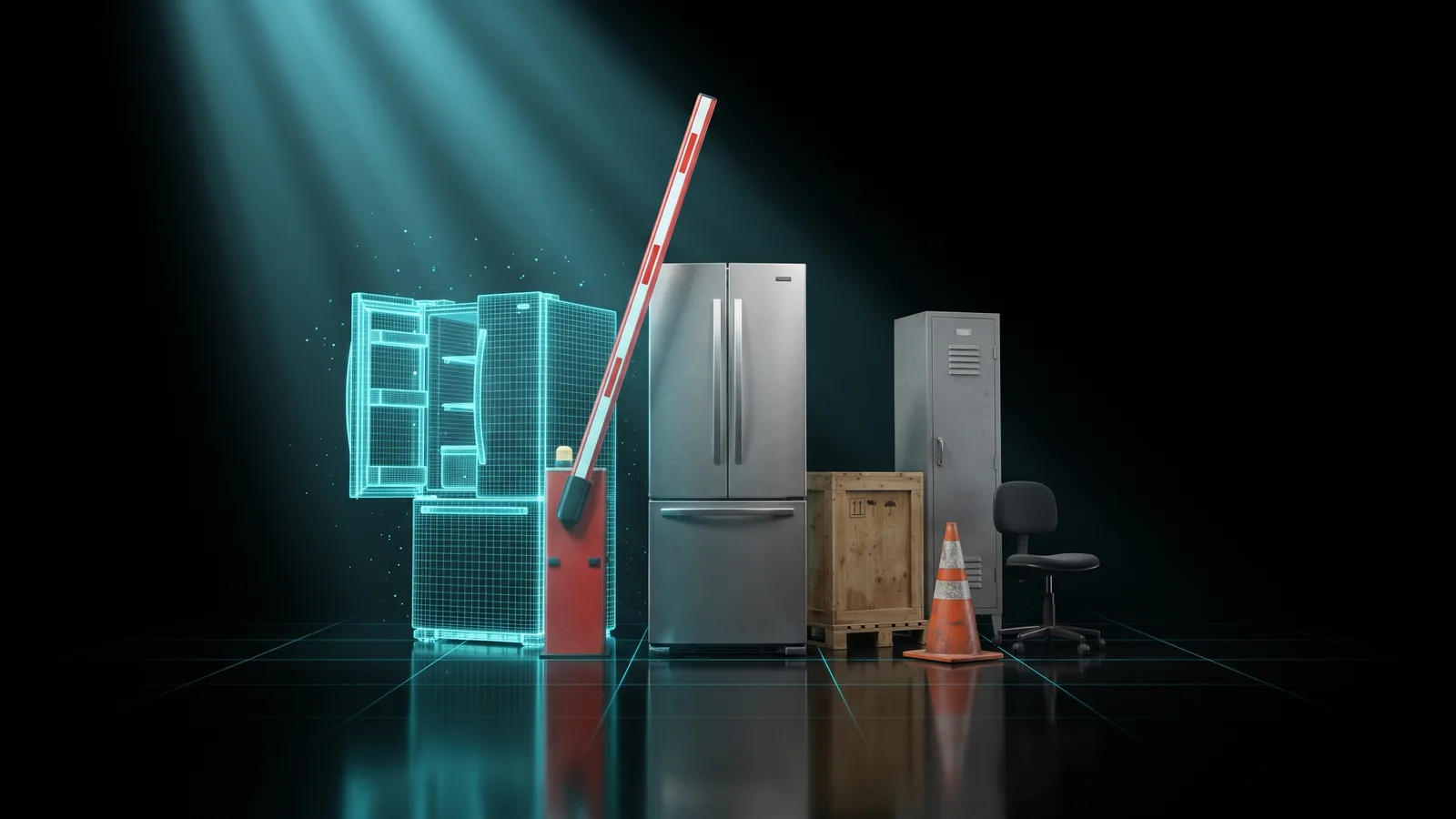
The Prop Library is a catalogue of thousands of 3D objects for a city: pallets, crates, food, hospital gear, workshop tools, appliances, furniture and more. Every object is already at its real size and has its colours. You search, look at it in 3D, and download it as a FiveM prop, ready to drop into resources/. Some objects have moving parts, like a fridge door or a drawer: those can come out with a small script that opens and closes them in game. The objects are open models under the CC BY 4.0 licence, and the author's credit travels inside your resource.
Who it's for
- Server owners who need everyday objects for a shop, a hospital, a garage or a warehouse.
- Mappers who want to fill an interior quickly without making every prop from scratch.
- Anyone who tried the Prop Creator and wants something cheaper and instant for common objects.
Before you start
- A THE ORB account. Browsing is free; downloading needs you to be signed in.
- Credits if you are on the Free or Starter plan: each prop costs 2. On Pro and Studio it is included.
Find an object
The left rail has two sections: Catalog and Your pack. Catalog opens first.
- 1
Search by name
Type in the search box, for example pallet, fridge or ladder. The list updates as you type.
- 2
Filter by category
Under Filter, pick All or one category: Warehouse, Tools, Garage, Food & kitchen, Medical, Furniture, Appliances, Electronics, Lighting, Street & building, Everyday or Other.
- 3
Show only moving objects
Turn on With moving parts to see only objects with doors, lids, drawers or wheels that move.
- 4
See more
The list shows 60 at a time. Click Show more at the bottom to load the next ones.
Look at it in 3D
- 1
Open it
Click an object. The Selected prop row shows its size in metres and how many triangles it has, and a 3D view opens.
- 2
Turn it around
Drag to orbit and use the wheel to zoom.
- 3
Watch the moving parts
If it has moving parts, the preview opens and closes them in a loop so you can see what moves before you pay.
Objects with more than 20 moving parts can be previewed, but cannot be downloaded.
Download one prop
- 1
Press the download button
For a still object, click Download for FiveM. For one with moving parts, the button says Download with moving parts. Under it you see the price, or Included in your plan.
- 2
Wait for the conversion
Our server turns the object into game files. For a moving object, each part is converted on its own, and the button shows which part it is on. On the Free plan, objects with moving parts wait behind other jobs; paid plans skip that line.
- 3
Save the zip
When it is done, a message tells you the prop name and the command to use in game. Click Save <name>.zip to save it. If you waited in a line, your browser may block an automatic download, so use that button.
Adjust it before downloading
If you want to change the size, the collision surface, the shine or the name before downloading, click Adjust it in the converter first. The object opens in 3D Model → FiveM with its credit already filled in. From there it follows that tool's options and price.
In the converter, moving parts come out still: the object becomes one prop.
Build a pack of props
A pack is several props in one resource: one folder to drop in and one line in server.cfg. Useful to furnish a whole interior at once.
- 1
Add props
In the catalog or on an open object, click Add to pack (the + button). Click it again to remove it. A pack holds up to 30 props.
- 2
Open Your pack
In the left rail, Your pack shows the list and the total price.
- 3
Name the resource
Type a Resource name. It becomes the folder name.
- 4
Download it
Click Download pack and confirm. Each prop is converted one after the other. Clear empties the list.
If one prop fails, the rest still come out. The tool tells you which ones failed, and what they cost is returned. Your pack list is kept in this browser until you clear it.
The licence and the credit
The objects come from Sand3D by Sandflow and are shared under CC BY 4.0. You can use them on a commercial server as long as the author is credited. The tool does that for you: every resource includes an ATTRIBUTION.txt with the name, author, licence and source of each object. Keep that file in the folder.
What you download
A still object gives you a .zip with the same layout as the converter:
<name>/
  fxmanifest.lua
  stream/   the model (.ydr), textures (.ytd), collision (.ybn) and .ytyp
  client.lua        /<name>, /<name> undo and /<name>_view
  html/index.html   the screen used by /<name>_view
  ATTRIBUTION.txt
  INSTRUCTIONS.txt / LEEME.txt / LEIAME.txt
An object with moving parts gives you one prop per part and a script that puts them together and moves them:
<name>/
  fxmanifest.lua
  stream/   one .ydr / .ytd / .ybn / .ytyp per part
  client.lua        /<name>, E to open and close, /<name>_remove
  ATTRIBUTION.txt
A pack joins everything into one folder. Still props share one client.lua; each moving prop adds its own client_<name>.lua.
Price: 2 credits per prop, however many parts it has. Included on Pro and Studio. It does not use AI, so export credits can pay for it. See pricing.
Install it on your server
- 1
Drop the folder
Unzip it into your server's
resources/folder. - 2
Ensure it
Add
ensure <name>toserver.cfg, with the name of the folder. - 3
Restart
Restart the server, or type
refreshand thenensure <name>in the server console. - 4
Place a still prop
In the city, stand where you want it and type
/<name>. It appears in front of you, on the ground./<name> undoremoves the last one. - 5
Place a moving prop
Type
/<name>. Walk up to it (within 2.5 m) and press E to open and close it. Parts without a stop, like a wheel, keep turning while it is open./<name>_removetakes it away.
The command is for trying the prop and placing it quickly. Props placed with it are not saved: they are gone after a restart. A moving prop placed with its command is only seen by the player who placed it, and typing the command again moves it to where you are.
Common problems
The download button is missing on an object.
It has more than 20 moving parts. You can look at it, but it cannot be downloaded. Pick a similar object.
It has been waiting in line for a long time.
On the Free plan, objects with moving parts go behind other jobs. Keep the page open and it finishes. Paid plans skip that line.
It finished but nothing downloaded.
Your browser blocked the automatic download. Click Save <name>.zip under the object.
Pressing E does nothing.
Stand closer: the key works within 2.5 m. Also check you placed it with /<name> from the same resource after restarting.
The library does not load.
The catalogue is temporarily unavailable. Try again in a moment.
It says I am out of credits.
Each prop costs 2 credits on Free and Starter. Top up, or move to Pro or Studio where the library is included.
Questions
Can I use these props on a paid server?
Yes. CC BY 4.0 allows commercial use as long as the credit stays. Keep ATTRIBUTION.txt in the resource.
Can I change the size or the material?
Yes. Click Adjust it in the converter first and set them in 3D Model → FiveM before downloading.
Does a prop with 8 moving parts cost more?
No. The price is per object, not per part.
Does it count against my daily conversions?
No. Library props are charged on their own and do not use the converter's daily count.
What if the object I need is not there?
Make it with the Prop Creator from a description or a photo.
Checked against the tool on November 15, 2026.
Wypróbuj Prop Library teraz
Tysiące gotowych obiektów dla twojego miasta: wybierz jeden, obejrzyj go w 3D i zamień w prop FiveM.
Więcej poradników: Propy i modele
- Model 3D → FiveMWchodzi model 3D, wychodzi prop FiveM: z teksturami i kolizją.
- Kreator PropówOpisz propa albo upuść zdjęcie, a powstanie.
- Kreator BroniWchodzi twój model, wychodzi broń add-on.
- Vinewood Sign CreatorNazwa twojego miasta na wzgórzu Vinewood.
- Billboard CreatorTwoje reklamy na billboardach, ścianach i witrynach.
- VFX CreatorWłasne efekty cząsteczkowe dla twojego serwera.
- Vehicle CreatorZbuduj unikalne auto, spawnuj je przez /car.
- Asset OptimizerTen sam resource, lżejszy: tekstury, które się wczytują.
- Livery CreatorZaprojektuj livery na aucie, dostań zasób.


