
Billboard Creator: poradnik i samouczek
Twoje reklamy na billboardach, ścianach i witrynach.
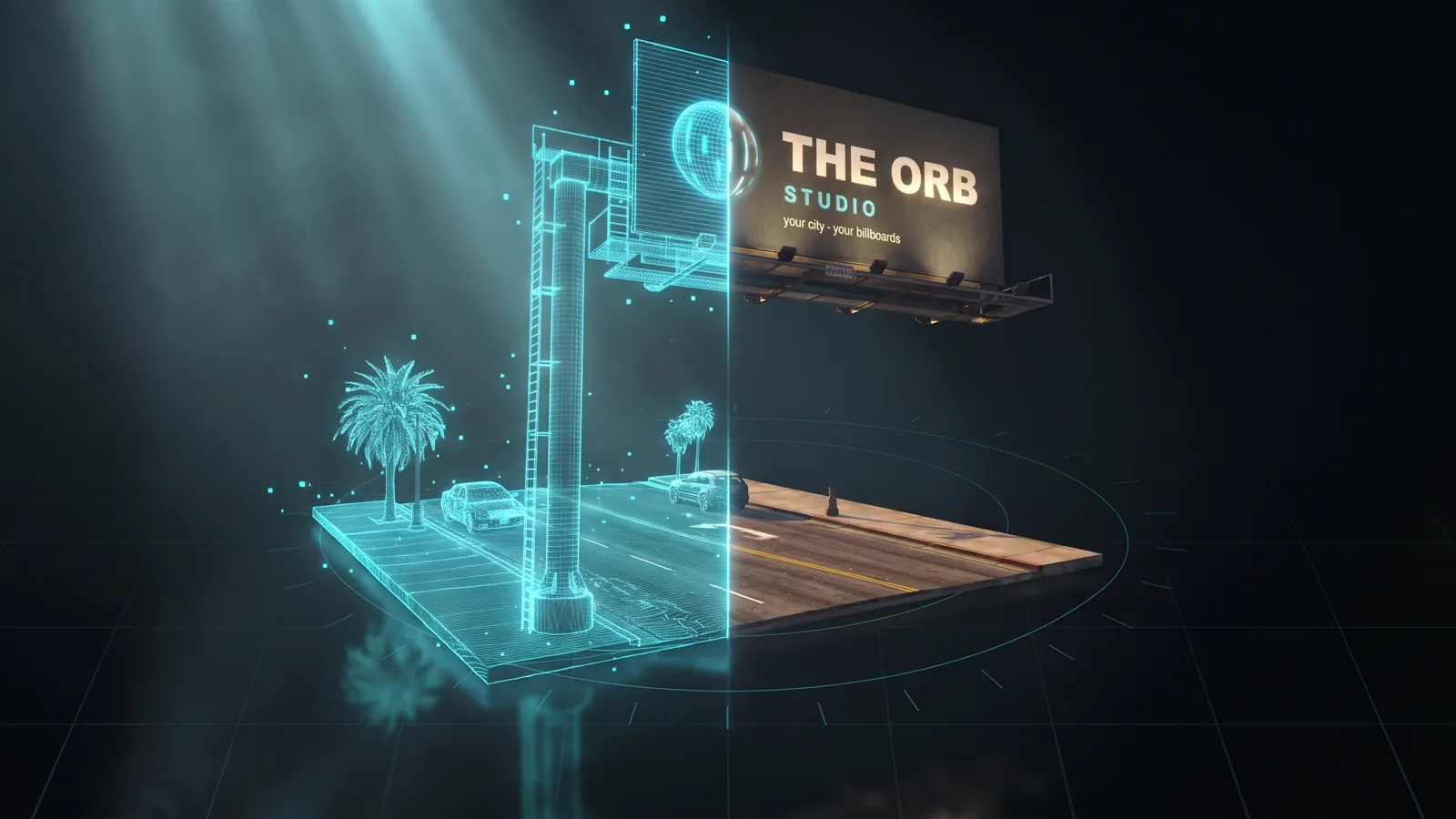
Poradnik wideo pojawi się wkrótce
Do tego czasu poradnik poniżej przeprowadzi cię przez każdy krok.
Na razie ten poradnik jest tylko po angielsku.
What it is
The Billboard Creator puts your own images on the city. You choose a GTA street billboard, a flat panel for a wall, 3D letters for a shopfront or a waving flag, add your image, video or logo, and download one resource. In game, as an admin, you type a command, aim where it goes and press E. Everyone sees it, it stays after restarts, and nothing of the map is replaced.
Who it's for
- Server owners who want to advertise their server, events or partners around the city.
- Servers that sell ad space to in-game businesses and need to put up new ones often.
- Anyone who wants a shop name in 3D letters or a flag with their logo without touching map files.
Before you start
- A THE ORB account. You need to sign in to download.
- Your image (PNG, JPG, WEBP or GIF, up to 20 MB). For a moving billboard, a video (MP4 or WebM, up to 200 MB) or a GIF (up to 15 MB).
- Admin rights on your server to place the billboards in game.
Choose the type of billboard
Open the Type section on the left. At the top there are four types. The text under them explains each one.
- Street: one of 17 billboards that already exist in GTA, with your image on its face. The structure is the game's own, so it works with any map.
- Panel: a flat sign of any size, to hang on a building or a shop.
- Letters: your shop name and logo as 3D letters for a facade, with nothing behind.
- Flag: a GTA flag with your image. It waves with the game's wind.
- 1
Street: pick the billboard
In Billboard, click one of the 17 thumbnails. A small number in the corner tells you how many faces it has. A building icon marks the ones made for walls. Hover a thumbnail to see the size of its face.
- 2
Panel: set the size
In Size, set Width (0.5 to 30 m), Height (0.3 to 20 m) and Depth (3 to 100 cm). Choose No frame, Thin frame or Thick frame, and the frame colour.
- 3
Letters: set the size
In Size, set Letter height (0.2 to 8 m) and Depth (2 to 100 cm).
- 4
Flag: pick the pole
Choose Tall pole (10.6 m), Pole (7.4 m), Large, no pole or Small, no pole. The ones without a pole are for a wall or for a pole that is already on the map.
- 5
Light it at night
In At night, turn on Lit at night so the face glows after dark. The viewer switches to night so you can see it. Flags do not have this option.
- 6
Name it
In Name, type a short name (up to 28 characters). It sets the in-game command, shown right under it, for example
/bb_downtown_ad.
Add your image
For Street, Panel and Flag, open the Content section and the Image row.
- 1
Upload it
Click Upload image. Under the buttons, Best tells you the size in pixels that fills the face with nothing cut off.
- 2
One image or one per face
If the billboard has more than one face, Same image on all N faces is on. Turn it off to upload a different image for each face.
- 3
Fit it
Fill covers the whole face and may crop the edges. Whole image shows all of it and fills the rest with a background colour you choose.
- 4
Check it
Use Front, Side and From the street over the viewer, and Day or Night. A person stands next to it so you can judge the size.
Make it move: video, GIF or slideshow
Street and Panel billboards can move. Open the Motion row in Content.
- 1
Choose the mode
Image keeps it still. Video / GIF plays a clip on a loop. Slideshow rotates several images.
- 2
Video or GIF
Click Upload video or GIF. MP4, WebM and GIF work. Only the first 60 seconds go to the game. MP4 files are converted for the game while you download, and you see the progress.
- 3
Slideshow
Click Add images and pick between 2 and 8 images. Each one sets how long each image stays, from 1 to 20 seconds.
- 4
Add scrolling text
In Ticker and LED, turn on Scrolling text and type your message (up to 120 characters). Pick the text colour, the band colour, the Speed, and whether it runs at the Top or Bottom.
- 5
Add the LED look
Turn on LED screen to make it look like a screen made of lights.
A moving billboard only plays while someone is within 200 m, so it does not weigh on players far away. With motion, all faces of the billboard show the same thing.
3D letters: text, logo, font and colours
With Letters, the Content section changes. At the top, choose Text, Logo or Text + logo.
- 1
Type the text
In Text, type the name (up to 24 characters). Tick Keep lowercase if you do not want everything in capitals.
- 2
Upload the logo
In Logo, click Upload logo. Choose Cut out, Circle, Rounded or Square, where it goes (Before the text or After the text) and its Size.
- 3
Pick a font
In Font, choose one of the 12 fonts or click Your font to upload a .ttf or .otf (up to 8 MB). Width makes the letters narrower or wider.
- 4
Pick the colours
In Colours, choose the face colour from the swatches or any colour you want, and a colour for the Sides. Sides: automatic puts them back to match the face.
Put several billboards in one pack
If you want more than one billboard, add them to a pack. The pack keeps your designs and builds all of them into a single resource when you download it, each one with its own command.
- 1
Add the first one
When a billboard is ready, click Add to pack at the bottom. It is saved with its command, for example
/bb_downtown_ad. - 2
Make the next one
Change the type, image or name and click Add to pack again. Each billboard needs a different name, because the name sets the command.
- 3
Edit one
Open the Pack section and click a billboard to load it. Change what you want and click Update in pack. To keep the original and save the changes as a new one, click Add it as another billboard.
- 4
Name and download the pack
In Pack, type the Pack name at the bottom and click Download the pack. The button shows how many billboards it has and what it costs.
The bin icon removes one billboard from the pack. Clear removes all of them and cannot be undone.
The pack lives in projects. Open My projects at the top of the Pack section to keep separate packs, for example one per client. Projects are saved in this browser, and paid plans also keep them in your account.
Share it in the gallery
- 1
Open the Pack section
The Share button is at the bottom.
- 2
Take the photos
It opens the Photo Studio. It records a short video turning around the billboard and takes photos by day, at night and at sunset. You can publish them as they are or take your own.
- 3
Publish
Your billboard appears in the Studio gallery. Other people can see it, and subscribers can open your settings to make their own version.
Send it straight to your server
If you have ORB Core installed, you can skip the zip. ORB Core is a free resource that links your server to your Studio account.
- 1
Link your server once
Under the download button, click Connect your server, download ORB Core and follow the steps. You type a short code in your server to link it.
- 2
Send it
Click Send to with your server's name. The Studio builds the billboard or the pack and your server installs and starts it on its own, with no FTP and no restart.
- 3
Follow the status
You see each step until it says Installed. If it fails, you can still download the zip.
What you download
Click Download for FiveM for the billboard you have open, or Download the pack in the Pack section. The Studio builds the model, converts it to the game's format and packs the resource. You get orb_bb_<name>.zip.
| Inside the folder | What it is for |
|---|---|
stream/ | Your billboard in the game's format. For a flag, a .yft (the flag with your image) and a .ytyp. |
client.lua | The placing command, the see-through preview while you aim, and the billboards near you. |
server.lua | Saves where each billboard was placed, checks who is allowed to place them, and sends them to every player. |
html/ | Only for moving billboards: the page that plays your video, GIF or slideshow on the billboard. |
fxmanifest.lua | The file FiveM reads to load the resource. |
README.txt, LEEME.txt, LEIAME.txt | Install steps and the commands, in English, Spanish and Portuguese. In a pack, the README lists every command. |
Street, panel and letter billboards go through the same conversion as other 3D models in the Studio. On the Free plan each one uses credits and there is a daily limit. In a pack, flags do not count. The button shows the cost before you click. See pricing.
Install it on your server
- 1
Copy the folder
Unzip the file and put the
orb_bb_<name>folder in your server'sresources/folder. - 2
Add it to server.cfg
Add
ensurewith the folder name. - 3
Start it
Restart the server, or type the same
ensureline in the server console. - 4
Place it in game
As an admin, type the command (for example
/bb_downtown_ad). A see-through copy follows where you aim. Aim at a wall to hang it, or at the ground to stand it up facing you. - 5
Adjust and confirm
Mouse wheel turns it (hold Shift for small steps). Arrow up and down raise or lower it. Press E to place it, or Backspace to cancel.
ensure orb_bb_downtown_ad
You can place the same billboard as many times as you want. To remove one, stand near it and add remove to the command: it removes the closest one within 25 m.
/bb_downtown_ad
/bb_downtown_ad remove
Admins with the usual command permission can place billboards. To let another group do it, add this line to server.cfg:
add_ace group.mod orbbillboard.place allow
To update a billboard, replace the folder with a new download. The places you set are kept.
Common problems
The command does nothing or says I am not allowed
Your account needs the command permission, or your group needs orbbillboard.place. Add the add_ace line above to server.cfg and restart the server.
It says the limit was reached
Each billboard resource holds up to 200 placed copies. Stand near one you do not need and use the command with remove, then place the new one.
My image is cut off at the edges
Switch to Whole image in the Image row, or use an image with the size shown next to Best.
The video does not move in game
Moving billboards only play when someone is within 200 m. Walk closer. If you uploaded a long video, only the first 60 seconds are used.
It says there is already a billboard with that command in the pack
Two billboards in a pack cannot share a name. Change the Name in the Type section and add it again.
It says the browser is out of space
The pack is saved in your browser, and large videos fill it up. Use smaller files, or remove billboards you do not need from the pack.
Questions
Does it replace the ads that are already on the map?
No. Street billboards use GTA's own structure as a separate object, with your image on top. Nothing of the map is replaced, so it works with any map.
Do the billboards stay after a restart?
Yes. The places are saved on the server. They stay after restarts and after you replace the folder with a new version. Every player sees them.
Can I put several billboards in one resource?
Yes. Add them to the pack and download the pack. You get one resource, and each billboard keeps its own command.
From how far away can players see them?
Up to 600 m. Billboards farther than that are created as players get closer.
Can a billboard show a video?
Yes, Street and Panel billboards can play a video, a GIF or a slideshow, with scrolling text and an LED look on top.
Checked against the tool on November 15, 2026.
Wypróbuj Billboard Creator teraz
Twoje obrazy na billboardach miasta: przy drodze, na ścianach albo jako litery 3D nad sklepem, ustawiane w grze przez celowanie.
Więcej poradników: Propy i modele
- Model 3D → FiveMWchodzi model 3D, wychodzi prop FiveM: z teksturami i kolizją.
- Kreator PropówOpisz propa albo upuść zdjęcie, a powstanie.
- Kreator BroniWchodzi twój model, wychodzi broń add-on.
- Prop LibraryGotowe obiekty 3D do zamiany w propy FiveM.
- Vinewood Sign CreatorNazwa twojego miasta na wzgórzu Vinewood.
- VFX CreatorWłasne efekty cząsteczkowe dla twojego serwera.
- Vehicle CreatorZbuduj unikalne auto, spawnuj je przez /car.
- Asset OptimizerTen sam resource, lżejszy: tekstury, które się wczytują.
- Livery CreatorZaprojektuj livery na aucie, dostań zasób.


