
Vinewood Sign Creator: guide and tutorial
Your city's name on the Vinewood hill.
Video tutorial coming soon
Until then, the written guide below takes you through every step.
What it is
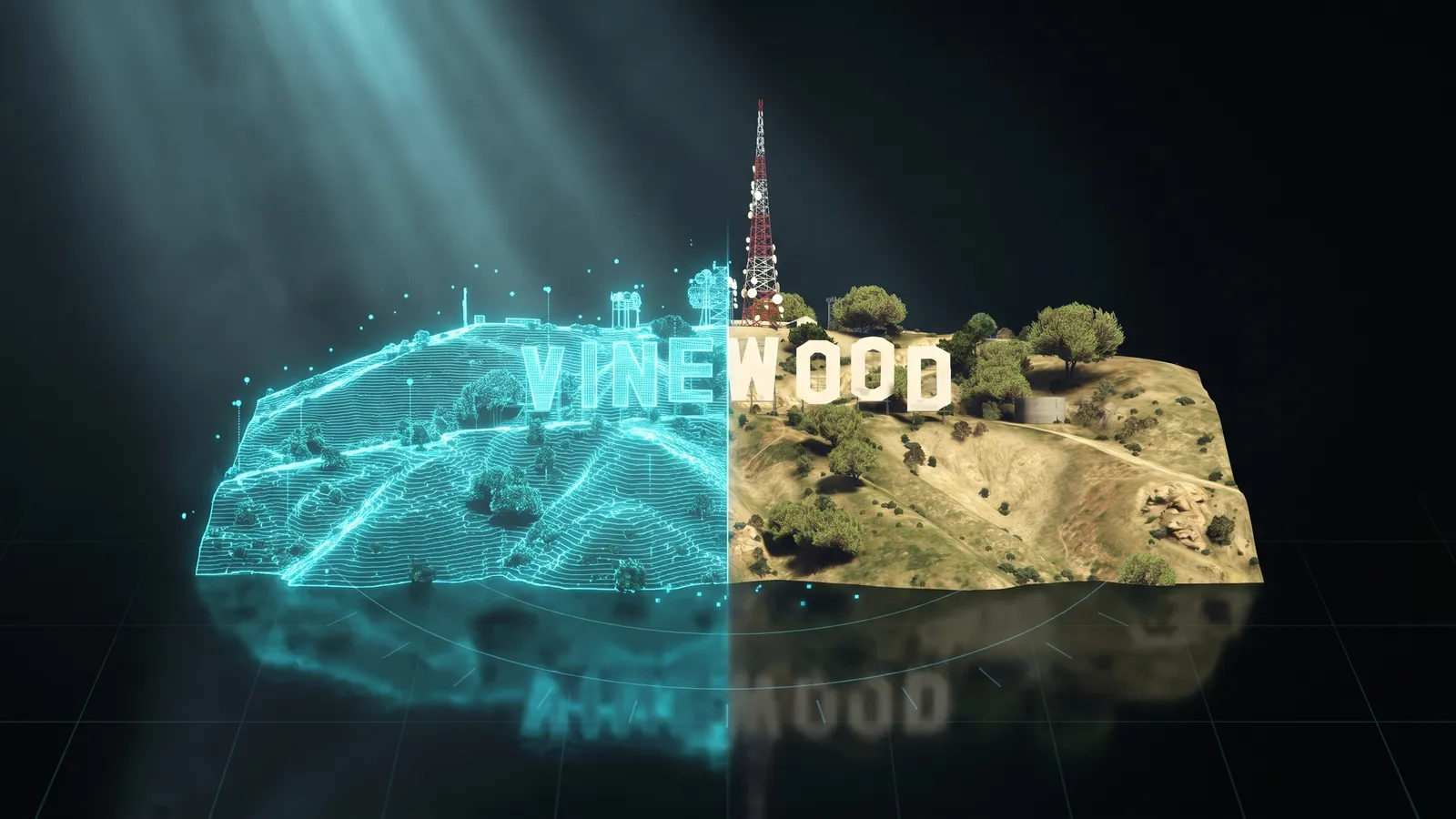
The Vinewood Sign Creator rebuilds the big sign on the hill with your server's name, your logo, or both. You see it live on the hill, by day or by night, at the same size and angle as the original. When you are happy, you download one resource (a folder you drop into resources/) that hides the original sign and puts yours in exactly the same spot. It does not replace any map file of the hill, so it works next to most maps.
Who it's for
- Server owners who want the city's name on the hill instead of VINEWOOD.
- Roleplay servers that want their logo to be the first thing players see from the city.
- Anyone who wants a custom landmark without hiring a 3D artist.
Before you start
- A THE ORB account. You need to sign in to download.
- Your server name, up to 16 letters. Longer names get smaller letters so they fit on the hill.
- Optional: your logo as a PNG, JPG or WEBP (up to 15 MB) and a font file (.ttf or .otf, up to 8 MB).
Choose what goes on the hill
Open the Content section on the left. At the top you pick what the sign shows: Text, Logo, or Text + logo.
- 1
Type the name
In Text, type your city's name. The counter shows how many letters you have used out of 16. Letters are capitals by default. Tick Keep lowercase if you want lowercase letters too.
- 2
Check that it fits
If the name is too long for the hill at full size, a note under the box tells you the letters were scaled down and to what height. Shorten the name or reduce the spacing (in Shape) to make them bigger again.
- 3
Add your logo
In Logo, click Upload logo. It is cut out to its own shape. You can switch to Circle, Rounded or Square instead of Cut out.
- 4
Place the logo
With Text + logo, choose Before the text or After the text. Use Size to make the logo smaller or larger than the letters (50% to 400%).
- 5
Pick a font
In Font, click one of the 12 fonts. Each button is written in its own font so you can compare. To use your own, click Your font and choose a .ttf or .otf file. Width makes the letters narrower or wider.
Your uploaded font and logo are saved with the project, so they come back when you reopen it.
Colours, finish and an image on the letters
Open the Style section. It has four rows: colours, finish, image and the AI finish.
- 1
Pick the main colour
In Colours, click one of the eight swatches or the last square to choose any colour. This paints the face of every letter.
- 2
Colour each letter on its own
Under Per letter there is one square for each letter of your name. Click one to give that letter its own colour. Same colour for all undoes it.
- 3
Sides, scaffolding and bulbs
The three squares below set the colour of the letter Sides, the Scaffolding behind them and the Bulb colour. The sides follow the face colour on their own until you change them. Sides: automatic brings that back.
- 4
Choose the finish
In Finish, move Wear from Clean up to 100% for a weathered look. Panel lines draws the joins between metal sheets. Scaffolding turns the structure behind the letters on or off.
- 5
Put an image on the letters
In Image on the letters, click Upload image (a pattern, a flag, a logo). Then choose Tile (repeated), One per letter, or Across the sign (one image stretched over the whole word). The bin button removes it.
Paint the letters with AI (paid plans)
The sign itself is free for everyone. The AI finish is extra: you describe a material and the AI paints it on the face of every letter. It is available on any paid plan and uses credits each time.
- 1
Open Finish with AI
It is the last row of the Style section.
- 2
Describe the finish
Click one of the examples (Rusty metal, Polished gold, Graffiti, Pink neon) or write your own, up to 200 characters.
- 3
Click Paint the letters
The button shows what it costs. It can take up to a few minutes. When it is ready, the finish appears on the letters, tiled.
- 4
Change how it sits
The result goes into Image on the letters, so you can switch it to One per letter or Across the sign, or remove it.
If the AI cannot make the finish, your credits are returned. On the Free plan the button says Paid plans only and links to pricing.
Size of the letters
Open the Shape section and the Letters row.
- 1
Height
From 6 to 24 metres. The original letters are around 19 metres tall.
- 2
Spacing
The gap between letters, from 0 to 10 metres. Less spacing leaves room for bigger letters on a long name.
- 3
Thickness
How deep each letter is, from 0.2 to 2 metres.
- 4
Hand-built
Tilts each letter a little so the sign looks put up by hand. When it is above 0%, Shuffle the tilt gives you a different random tilt.
Move it along the hill
The sign always stands where the original one is, at the same angle. In the Position row you can still adjust it.
- 1
Slide along the hill
Moves the whole sign left or right along the hill, up to 40 metres each way.
- 2
Height above ground
Lifts the letters from 0 to 8 metres above the ground.
- 3
Check from the city
Use the buttons over the viewer: From the city, Front, Side and Above. The top bar also shows the total length and the letter height.
Lights at night
- 1
Open At night
It is the last row of the Shape section.
- 2
Lit letters
Makes the face of the letters glow at night. Turning it on switches the viewer to night so you see it straight away.
- 3
Bulbs
Adds a row of light bulbs on the letters. Bulb spacing sets the distance between them, from 0.5 to 3 metres. Their colour is the Bulb colour in Style.
- 4
Compare day and night
Use Day and Night at the top right of the viewer.
In game the glow only shows at night, the same as the other lit signs of the map.
Projects: keep several signs
Every sign is saved on its own while you work. You never press a save button.
- 1
Open the Project section
It is the last icon on the left.
- 2
Switch or start over
Open My projects to go back to another sign, or start a new one from scratch.
- 3
Reset the look
Reset everything except the text puts every option back to the default and keeps your name.
Projects are saved in this browser. Paid plans also keep a copy in your account, so you can open them on another computer.
What you download
Click Download for FiveM at the bottom of the panel. The Studio builds the model, sends it to be converted to the game's format (you may see your place in the queue), and then packs the resource. You get a file called orb_sign_<name>.zip.
| Inside the folder | What it is for |
|---|---|
stream/ | Your sign in the game's format, plus empty or trimmed copies of the old sign's pieces so the original does not show from far away. |
client.lua | Hides the original sign and its lamps, and stands yours in its place. If something deletes it, it puts it back within 5 seconds. |
fxmanifest.lua | The file FiveM reads to load the resource. |
README.txt, LEEME.txt, LEIAME.txt | Install steps in English, Spanish and Portuguese. |
The download goes through the same conversion as other 3D models in the Studio. On the Free plan it uses credits and has a daily limit. The button shows the cost before you click. See pricing.
Install it on your server
- 1
Unzip the file
You get one folder named
orb_sign_<name>. - 2
Copy it to your server
Put the folder inside your server's
resources/folder. - 3
Add it to server.cfg
Add one line with the folder name.
- 4
Restart the whole server
Restart the server, not only the resource. The Vinewood sign is gone and yours stands in its place.
ensure orb_sign_los_santos_rp
Do not restart only this resource while players are connected. It swaps parts of the hill seen from far away, and the game can freeze if those change mid-session. To update it, replace the folder and restart the server.
To get the original sign back, remove the line from server.cfg and restart the server. The sign is visible from up to 3 km away.
Common problems
From the city I see both signs, the old one and mine
Another resource is also changing the Vinewood sign or the far-away hill models (files named ch2_lod3_*). Keep only one of the two and restart the server.
The game froze after I restarted the resource
Restart the whole server instead. Restarting only this resource with players online can freeze their game. Players who rejoin after a full restart are fine.
The letters are smaller than I expected
Your name is too long to fit at that height. Remove letters, or lower Spacing in Shape so the letters can grow again.
My sign takes a few seconds to appear when I fly in from far away
That is normal. The game loads the model as you get closer, and the script keeps trying until it is there.
The download button says the cloud conversion is off
The conversion service is paused on our side. Your design is saved. Try again later.
My own font is not accepted
Use a .ttf or .otf file under 8 MB. Other font formats and broken files cannot be read.
Questions
Does it replace map files of the hill?
It does not replace any .ymap, the files that place things on the map. It only hides the original sign and adds yours, plus empty copies of the old sign's pieces. That is why it works with most maps.
Can I put only my logo, without text?
Yes. In Content, choose Logo and upload it. It stands on the hill cut out to its shape, or inside a circle, rounded square or square.
Do I need a paid plan?
No. Building the sign, every colour, font, finish and the night lights are free to use. Only the AI finish needs a paid plan. Downloads on the Free plan use credits. See pricing.
Can I go back to the original sign later?
Yes. Remove ensure with the sign's name from server.cfg and restart the server.
Can I make more than one sign?
You can keep several in Project and switch between them. Only one sign can stand on the hill at a time, so keep only one of these resources running.
Checked against the tool on November 15, 2026.
Try Vinewood Sign Creator now
Put your city's name on the hill: type it and get the Vinewood sign rebuilt with your letters.
More guides in Props & models
- 3D Model → FiveMA 3D model in, a FiveM prop out: textures and collision included.
- Prop CreatorDescribe a prop, or drop a photo, and get one made.
- Weapon CreatorYour model in, an add-on weapon out.
- Prop LibraryReady 3D objects to turn into FiveM props.
- Billboard CreatorYour ads on billboards, walls and shopfronts.
- VFX CreatorCustom particle effects for your server.
- Vehicle CreatorBuild a unique car, spawn it with /car.
- Asset OptimizerThe same resource, lighter: textures that load.
- Livery CreatorDesign a livery on the car, get a resource.


